Custom tools & automation
The last few months, with the help of Copilot, I have been experimenting with various tools and scripts to make workflows more efficient by automating the most tedious and repetitive tasks. This is mainly about simplifying asset export for game productions, from Photoshop to Spine, reducing repetitive or error-prone steps and making the process more accurate, optimized and streamlined.
Modified PhotoshopToSpine script.
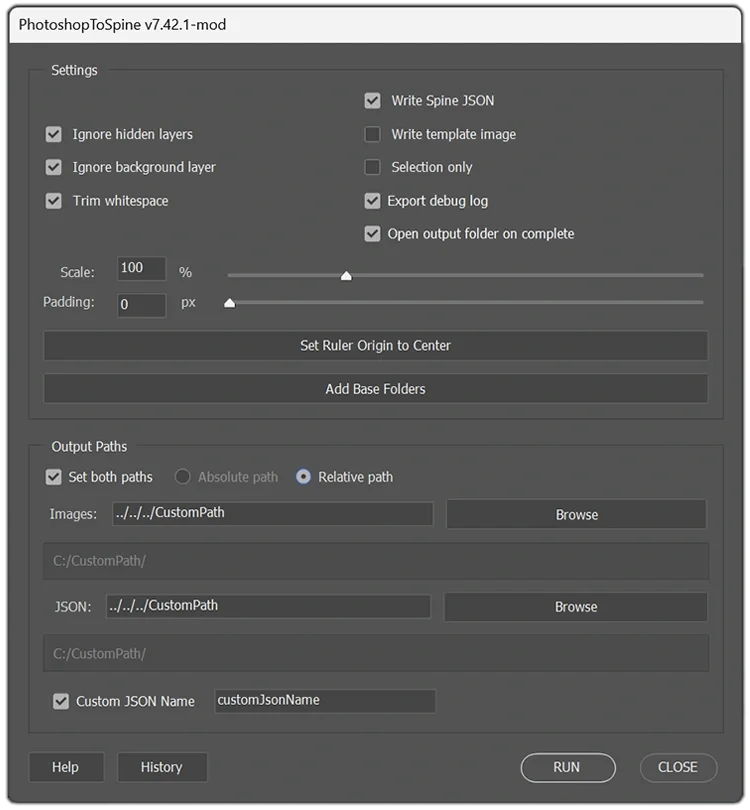
This is a preview of a customized version of the PhotoshopToSpine script, with extra functionality, adjusted for use in a production pipeline.
Key improvements
- Add Base Folders template button.
- Center Ruler Origin by clicking a button.
- Help & Tag Info updated.
- Absolute and Relative path toggle option.
- Path Browsing quick buttons to set export paths.
- Flexible Paths toggle single or both image + JSON
- Custom JSON field to set your own JSON filename.
- History Tracking button for the patch log.
- Debug logging, crash reports and hooks to support batch exporting.
- + more usability enhancements
These tweaks speeds up asset management and export workflows significantly between Photoshop and Spine, increasing efficiency and reusability throughout production.
This version is made for in-house use only and is not publicly available.
Spine Batch Exporter
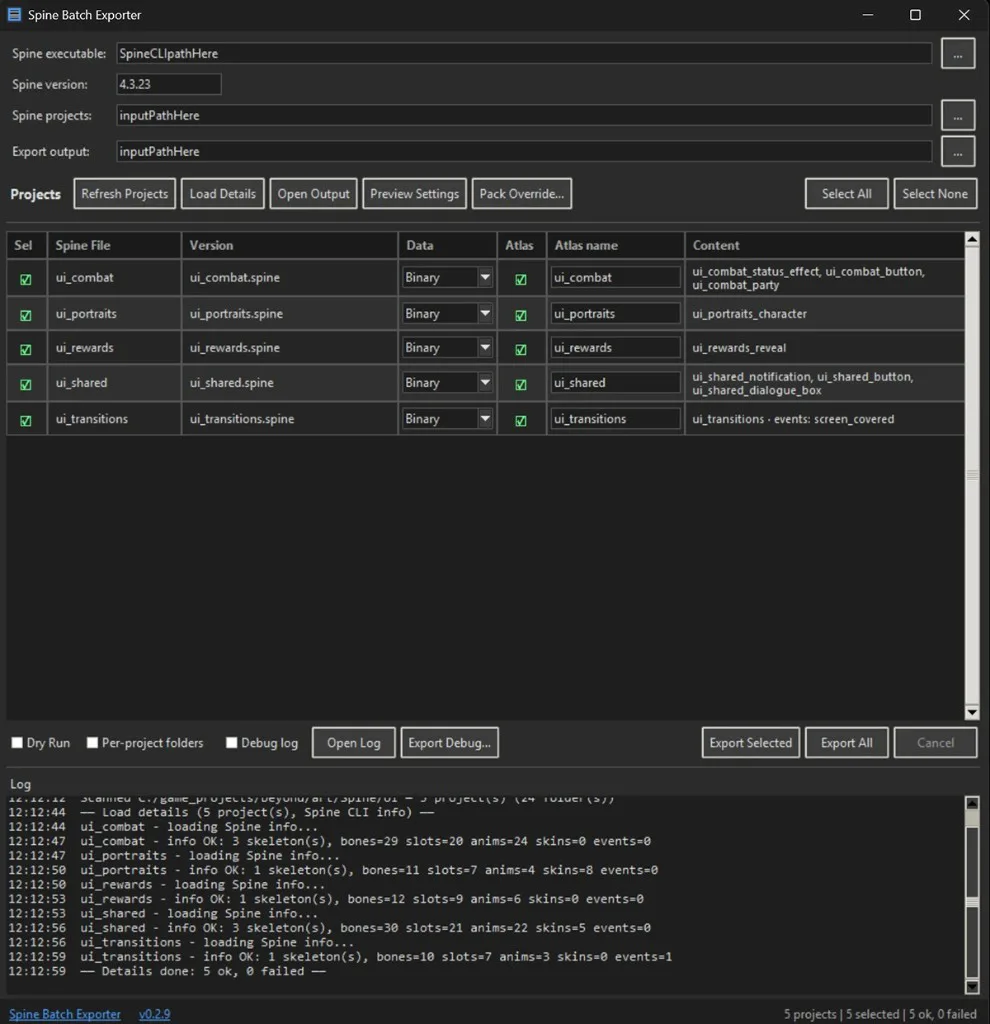
Spine Batch Exporter is a Python desktop tool for exporting multiple Spine projects using the Spine CLI. You point it at a projects folder and an output folder, set the editor version, and export selected Spine projects or the whole bunch.
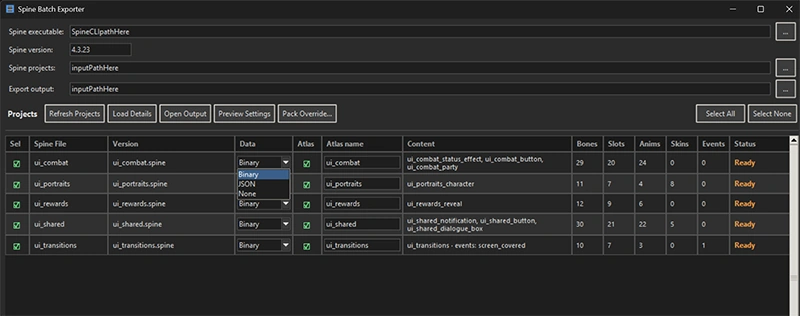
Each project can export as Binary or JSON individually, with atlas packing on or off. There is a Load Details button that previews skeleton stats like the number of bones, slots, animations, skins and events. If you have multiple Spine file iterations in a folder, it picks the one you saved most recently when exporting. You can also override this and choose a file manually.
Packing uses the project's pack.json or a shared Pack Override. Source projects stay read-only.
PhotoshopToSpine - Batch runner
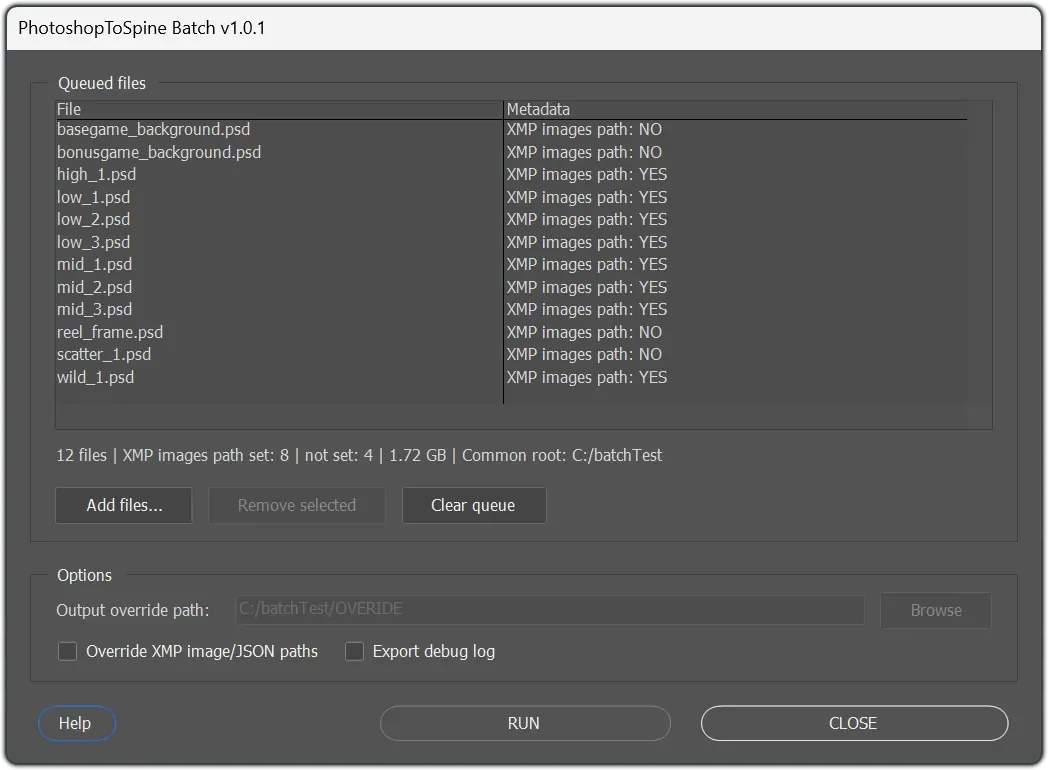
This is a JSX batch runner. It’s a companion to the PhotoshopToSpine script and can be executed if present in the same folder. It goes through all the PSD files added and exports them to predetermined relative path folders.
If a path is not set, it falls back to a default location side by side with the PSD. You can also override these paths and export the assets to a new location.
In essence, with the proper setup, it lets you re-populate the game with a bunch of assets with the press of a button and nothing breaks in Spine.
This is ideal for quicker productions such as reskins of existing games.
Atlas Weaver

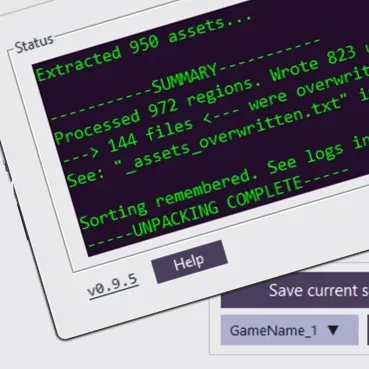
Atlas Weaver is a small Python tool for unpacking Spine atlases back into individual assets, then packing them into larger atlases based on custom folder sorting.
During unpack it overwrites assets with the same name so they only show up once in the atlases when you pack again, and it writes a short deduplication log of what got replaced. Skeleton paths in the JSON stay as they are. Packing can use the Spine CLI if available, or a slower built-in packer if not. After multipacking it can also merge JSON into one file to cut down runtime requests.
The folder you sort the assets into becomes atlases, and are stored in a sorting map, that can be exported/imported between projects. It also handles 1.0 and 0.5 setups. This is still a prototype and currently requires PNG source atlases as input, to make encoding faster and lossless. After packing you can convert textures to WebP, AVIF or KTX2.
Number Atlas Packer
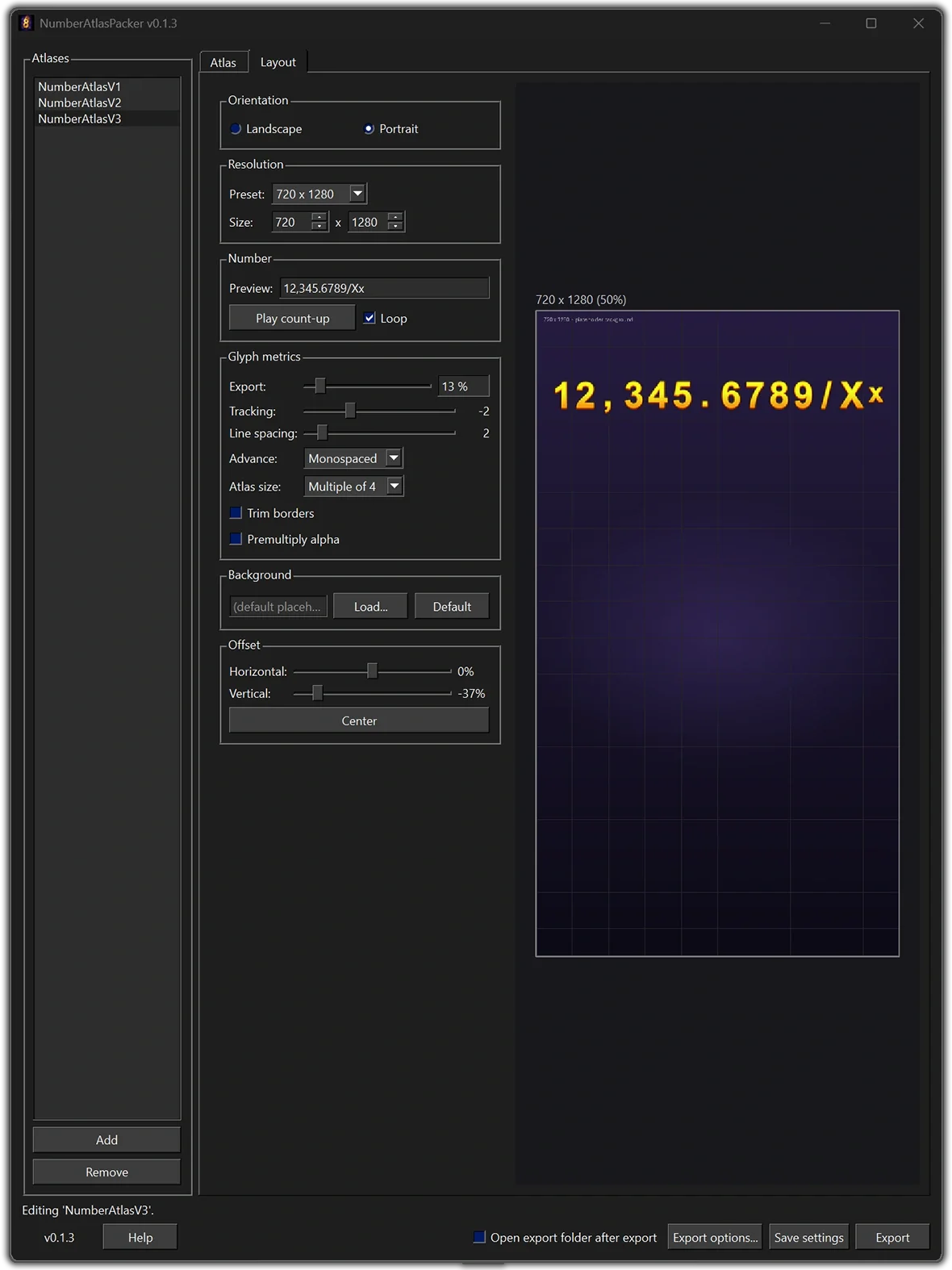
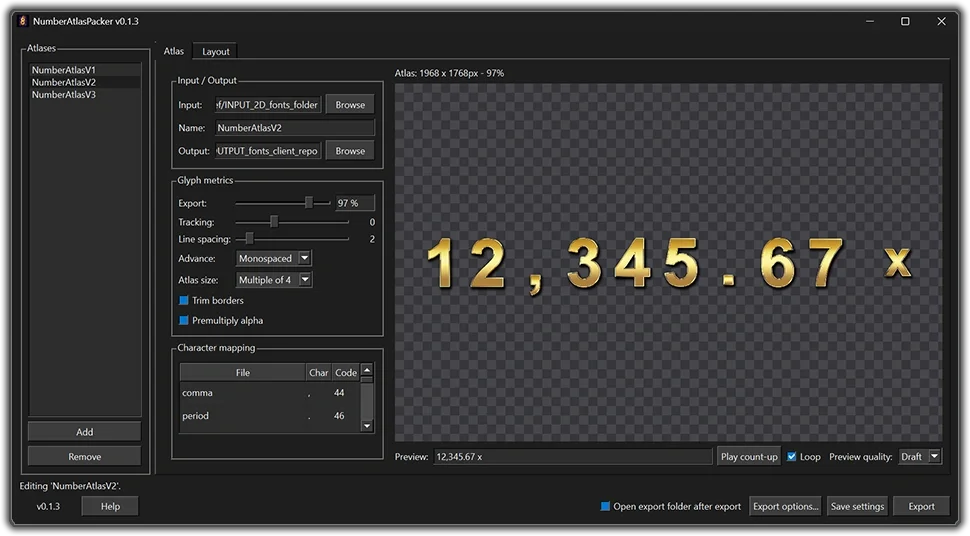
NumberAtlasPacker is a small Python desktop tool for packing individual digits/number bitmap assets into atlases. One atlas is cheaper to draw compared to individual assets, and it lets you control kerning and tracking more easily. It also writes a font file the game can read as XML, JSON, or FNT if you are on Godot.
You can export as WebP or PNG, tweak spacing and advance (monospaced, tabular, or proportional). A sidebar keeps several atlases ready so you can switch between them, and export settings for each atlas are stored.
The GUI has a live count-up preview and a Layout tab so you can check the number at real size against a game resolution before you export.
This is currently an experimental prototype and not publicly available.
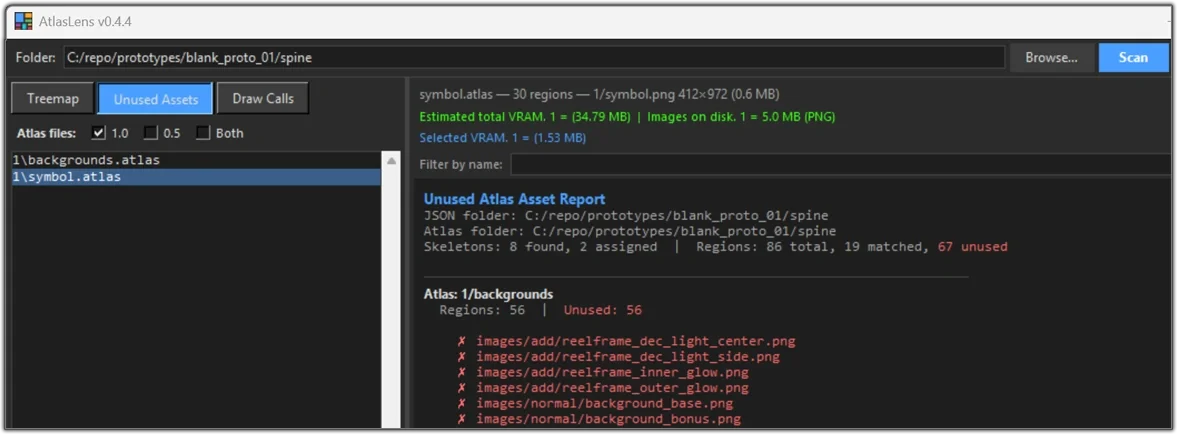
Atlas Lens
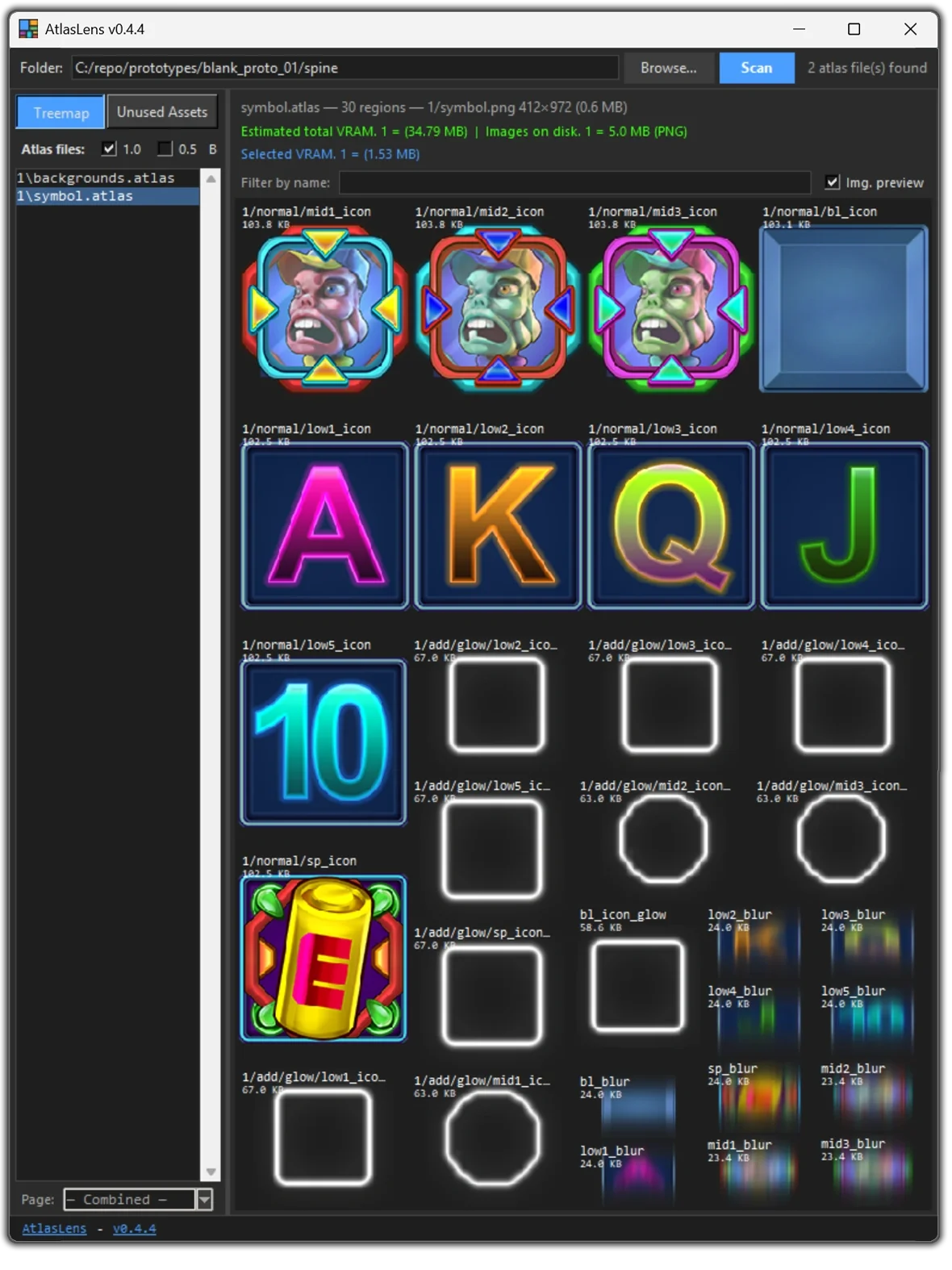
AtlasLens is a tool for inspecting Spine atlas files. Open a project folder and you get a treemap of every region, sized so you can see what’s eating space without digging through folders by hand. You can switch between colour blocks and image previews on the same view.
Hover a cell for name and size info, filter by name, and look at one page or several atlases together. The status bar shows estimated VRAM and disk size for the current view.
There is also an Unused Assets view that compares the atlas to the skeleton JSON and lists what nothing uses. You can stash those aside so they stay out of future packs. An experimental drawcall check estimates batch cost per skeleton and points at slots that break batches, so you can regroup them in Spine.
This is currently an experimental prototype and not publicly available.
Compression Toolkit
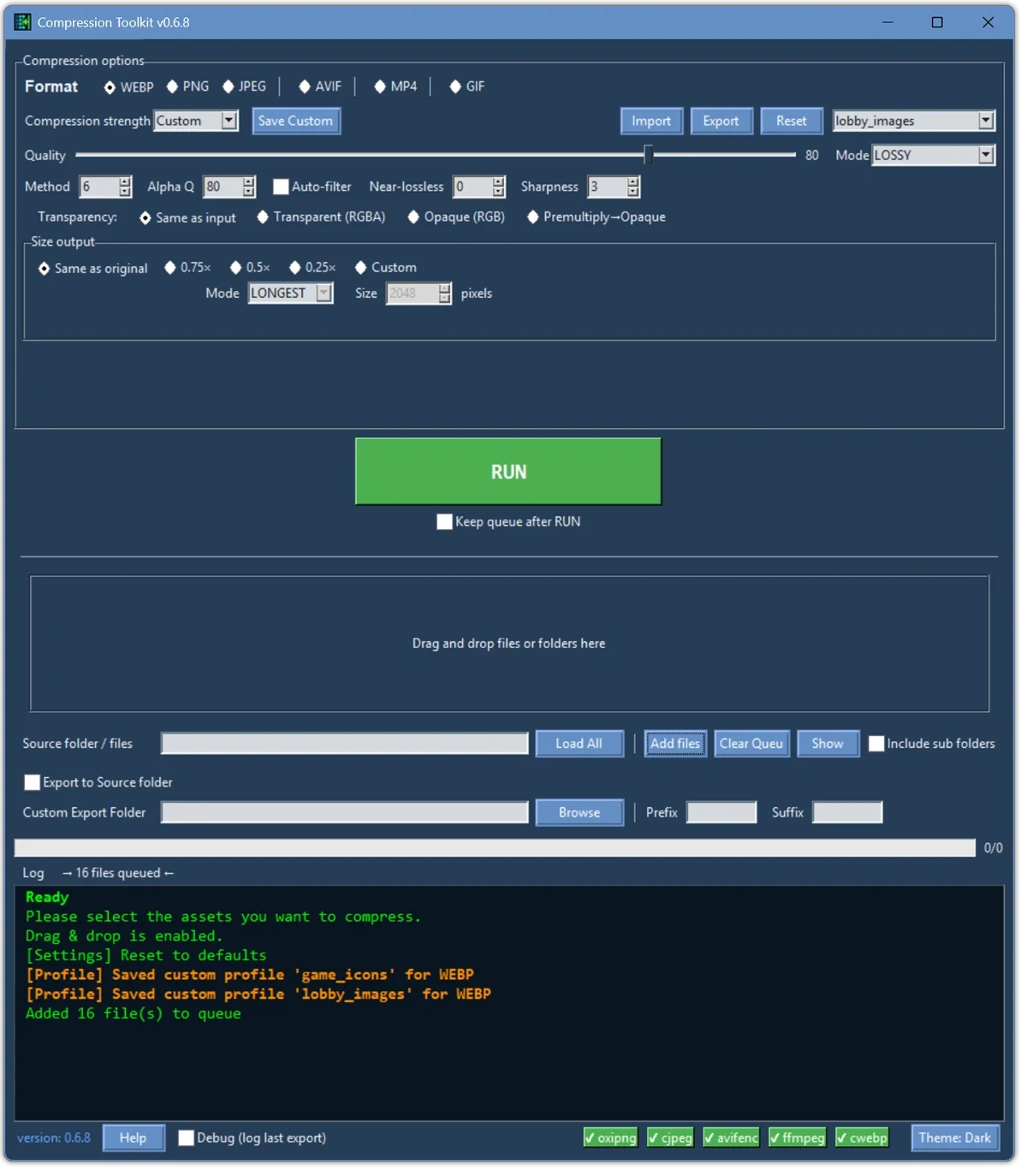
Compression Toolkit is a Python multitool for compressing image and video assets. It can output WebP, PNG, JPG, AVIF, MP4 and GIF, and you get the usual knobs for quality, alpha, lossy or lossless, and size.
There are a few default presets, and you can save your own settings for a project. Output can stay next to the original, or go to a custom path with a prefix or suffix on the filename.
Batch runs work via drag and drop, loading a folder, or building a queue of picked files. When a run finishes, the terminal reports how much space you saved.
This tool is currently a prototype and not publicly available.
Slack: Trello, drive and git automation
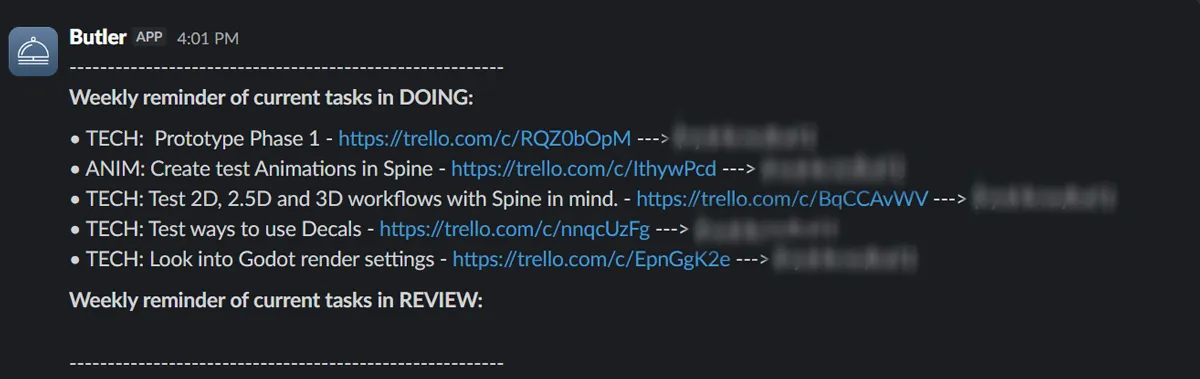
For Slack I have been experimenting with setting up watchers and occasional auto-posts to keep track of project updates and which tasks are currently in the works. Once a week, the current status for DOING and REVIEW tasks on Trello is posted in Slack, with a link to the card and who is working on it.
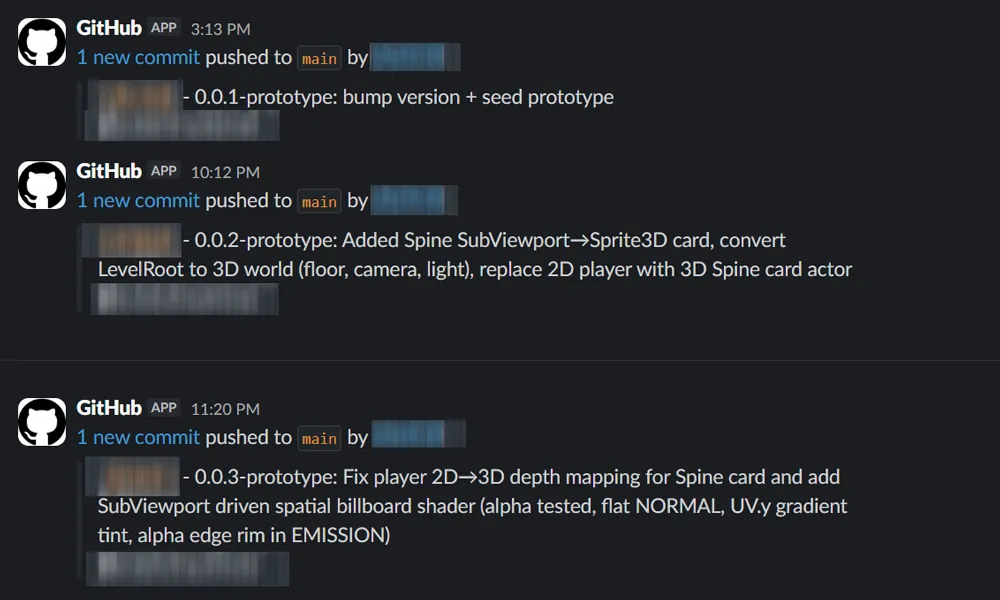
For Git, every push done on main is tracked in a "dev-log-commits" channel for reference.
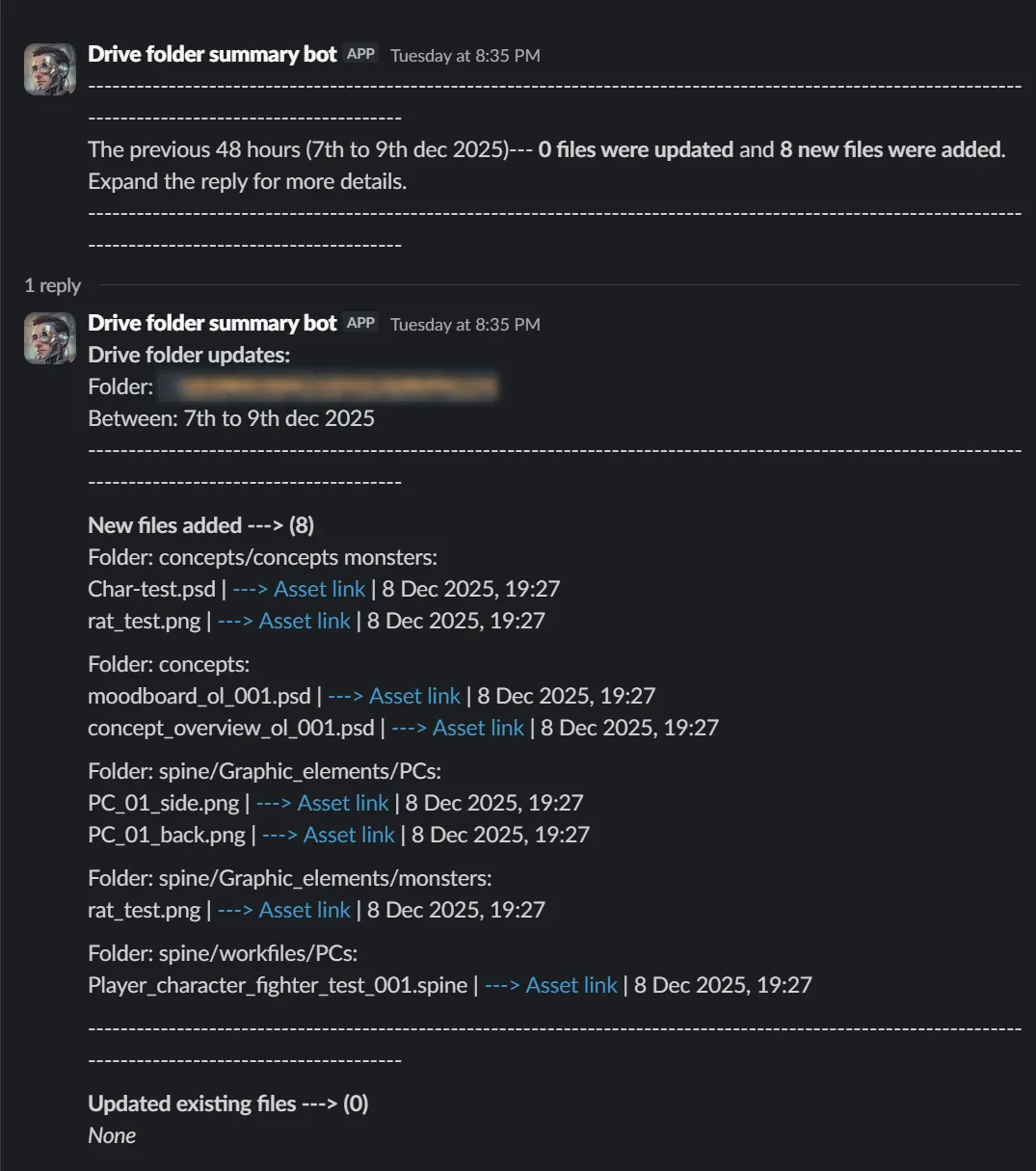

On top of that, I wired an asset Butler to post scheduled status updates to Slack. Every 48 hours it scans and makes a post if changes are found. It's a folder watcher using Google Apps Script plus a Slack bot token, so uploads and changes in a specific Drive folder (optionally including subfolders) automatically show up in a Slack channel, with names, date changed and a link.